
User
Make me a 60-second love story: a girl waits for a soldier who comes home
Direct AI video shot by shot: plan the camera, acting, references and timing in a free Director chat, then spend credits only when you press Generate. A 30-second Seedance 2.5 shot at 720p costs 122 credits, about $1.52 at the $4.99 Mini Pack rate, and an 8-second Veo 3.1 Fast shot costs 24 credits.
Dollar prices are at the $4.99 Mini Pack rate ($4.99 for 400 credits).
| What you make | Credits | Price |
|---|---|---|
| Director chat and shot plan | 0 credits | $0.00 |
| Seedance 2.5, 30 seconds at 720p | 132 credits | $1.65 |
| Seedance 2, 5 seconds at 720p | 106 credits | $1.32 |
| Veo 3.1 Fast, 8 seconds at 720p | 24 credits | $0.30 |
| Kling V3, 5 seconds at 720p | 50 credits | $0.62 |
Dollars use the $4.99 Mini Pack rate ($4.99 for 400 credits), rounded to the cent. Live prices, checked 26 September 2026; the studio shows the exact charge before you render. Pay by card, or in ringgit (RM) with Touch 'n Go eWallet for credit packs or Visa/Mastercard for monthly plans.
Plan first
The Director is a free chat that turns your idea into a shot plan. It only writes the plan. It never renders by itself.
The header says it plainly: “Plan first. Nothing here spends credits.” You only pay when you press a priced Generate button.
A real click-by-click tutorial
Follow the same 60-second love-story example shown here. Each step tells you what to press, what appears, and whether that action costs credits.
On Canvas, press the purple Director tab at the edge of the workspace. The Director panel opens. Opening it is free and creates nothing.
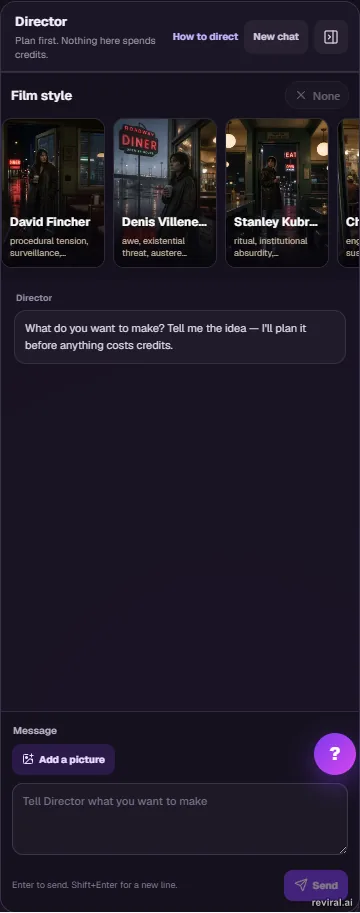
The header reminds you that planning is free. Pick a Film style if you want one, read the chat area, then use the Message area at the bottom. “Add a picture” attaches a scene reference. None of these controls spends credits.
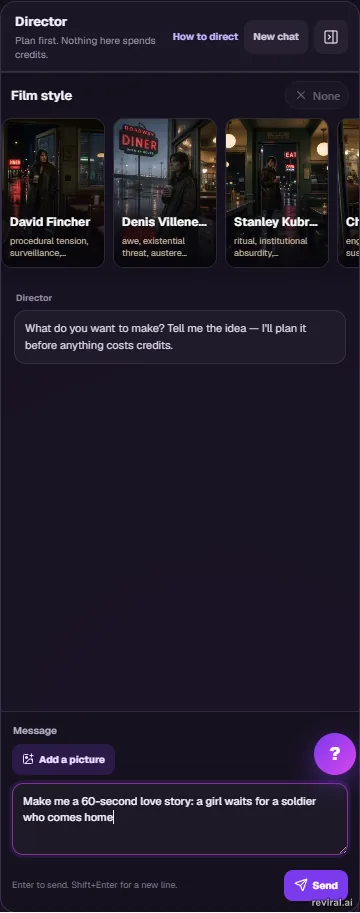
Click the Message box and type what you want. Here: “Make me a 60-second love story: a girl waits for a soldier who comes home.” Typing costs nothing, and the message is not sent until you press Send.
Press Send. The Director may ask focused questions and pitch story beats before the full plan. Confirm the beats, then read the plan and its Cheap draft and Premium price lines. The conversation is still free; the numbers are quotes, not charges.
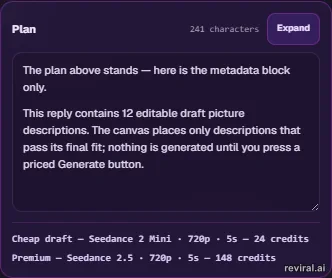
The plan places editable draft shot tiles on Canvas. Review a shot, then press its priced Generate button when you want the picture. This is the first step that spends credits, and the button shows the exact price before you press it.
Click inside a picture or video prompt box and type @. A reference picker opens at the caret. Choosing a reference only edits the prompt and costs nothing. The @ picker does not open in the Director chat box.

On Cinema, press Talk to the Director for a beat-first conversation, or open How to direct for this guide. Chat is free and Use this prompt only copies the finished prompt into Cinema. A video costs credits only when you press its priced Generate button.

Shape the idea in conversation
Vibe directing means shaping an AI video through conversation: you describe the feeling, story beat, camera idea, or change you want, then refine the plan through natural follow-up messages.
Reviral's chat-to-direct flow is vibe directing in practice because the Director turns that conversation into concrete shots, camera language, acting notes, references, and timing before any render starts.
From idea to complete shot list
This localhost conversation was captured from the real Director. It asked two focused questions, pitched five beats, and wrote the complete plan after the beats were confirmed.
User
Make me a 60-second love story: a girl waits for a soldier who comes home
Director
Two quick questions before I shape the beats:
User
Yes. Make the full plan.
Director
I'll take your silence on tone and era as creative latitude. I'll go bittersweet → joyful, contemporary setting.
Here are the beats first — confirm or adjust before I write the full plan.
---
Beat 1 — The Wait (0–12s) She stands at a window, holding a folded letter. Rain on the glass. She's still, watching the empty road.
Beat 2 — Small Signs of Time (12–24s) Quick cuts: a calendar, her hand setting a place at a table, a framed photo of him in uniform.
Beat 3 — The Message (24–32s) Her phone lights up. She reads it. Her breath catches — one tear, then a slow smile.
Beat 4 — The Arrival (32–48s) A car pulls up outside. She runs to the door. He steps out in uniform, worn and tired.
Beat 5 — The Reunion (48–60s) She reaches him. They hold each other in the rain. He lifts her slightly. Neither speaks. The camera pulls back slowly.
---
Confirm these beats and I'll write the full prompt plan.
User
Confirmed. Write the full prompt plan with the complete shot list and price paths.
Director
Here is the full plan.
---
Genre: Emotional reunion · Bittersweet → joyful Pacing: Expression close-ups held longer; movement cuts on action beats
---
| # | Title | Angle | Movement | Tone | Duration |
|---|-------|-------|----------|------|----------|
| 1 | Rain on Glass | Tight on window, eye-level | Static, slow rack from glass to her face | Cool blue, desaturated | 6s |
| 2 | The Letter | Extreme close-up, hands | Static | Dim interior, warm paper | 5s |
| 3 | Empty Road | Low wide, outside POV | Slow push toward road | Grey, overcast | 5s |
| 4 | Calendar | Close-up, wall | Static | Flat domestic light | 4s |
| 5 | Table for Two | Medium, kitchen | Slow tilt down to empty chair | Warm tungsten, soft | 5s |
| 6 | His Photo | Close-up, framed portrait | Static, slight focus pull | Warm, intimate | 5s |
| 7 | Phone Lights Up | Extreme close-up, screen | Static | Cool screen glow on her face | 6s |
| 8 | Her Face — The Smile | Tight portrait, front | Static, hold | Soft window light, warm shift | 7s |
| 9 | Car Arrives | Wide exterior, wet street | Slow push toward car | Grey rain, headlights | 6s |
| 10 | He Steps Out | Medium, street level | Static, hold | Rain, practical street light | 5s |
| 11 | She Runs | Medium-wide, exterior | Tracking with her motion | Rain, motion blur edges | 4s |
| 12 | The Embrace | Medium close, both | Very slow pull back | Rain, warm practical glow | 8s |
Total: 66s — trim shots 4 or 6 by 3s combined to hit 60s exactly at render.
---
This reply contains 15 editable draft picture descriptions. The canvas places only descriptions that pass its final fit; nothing is generated until you press a priced Generate button.
Canvas and Cinema
Open the Director on the Canvas page when you want a shot plan and reference sheets that can become tiles.
Open it on the Cinema page when you want help writing one finished, copy-ready prompt. After you confirm the idea, Cinema shows a “Use this prompt” button.
The story chooses the count
The Director decides how many shots the story needs. Emotional stories such as love, grief, and reunion lean on expression close-ups held longer. Short-form pacing averages about one shot every 2–3 seconds, while action may cut faster.
Canvas accepts up to 20 shots and up to 8 reference sheets in one plan. Those are safety ceilings, not targets; the Director should neither pad a simple story nor trim a larger one to a round number.
For the same beat, the plan can show a Cheap draft path and a Premium path. The system calculates the real credit numbers and shows them under the plan. The Director does not invent prices.
Credits can be spent only when you choose and press a priced Generate button for an actual render.
Describe the frame
There is no fixed camera-word menu. Describe the shot as you would tell a camera operator. English or Chinese both work: close-up (特写), extreme close-up, wide shot (全景), low angle, high angle, over-the-shoulder (过肩镜头), camera movement (运镜), pan, zoom, or shallow focus.
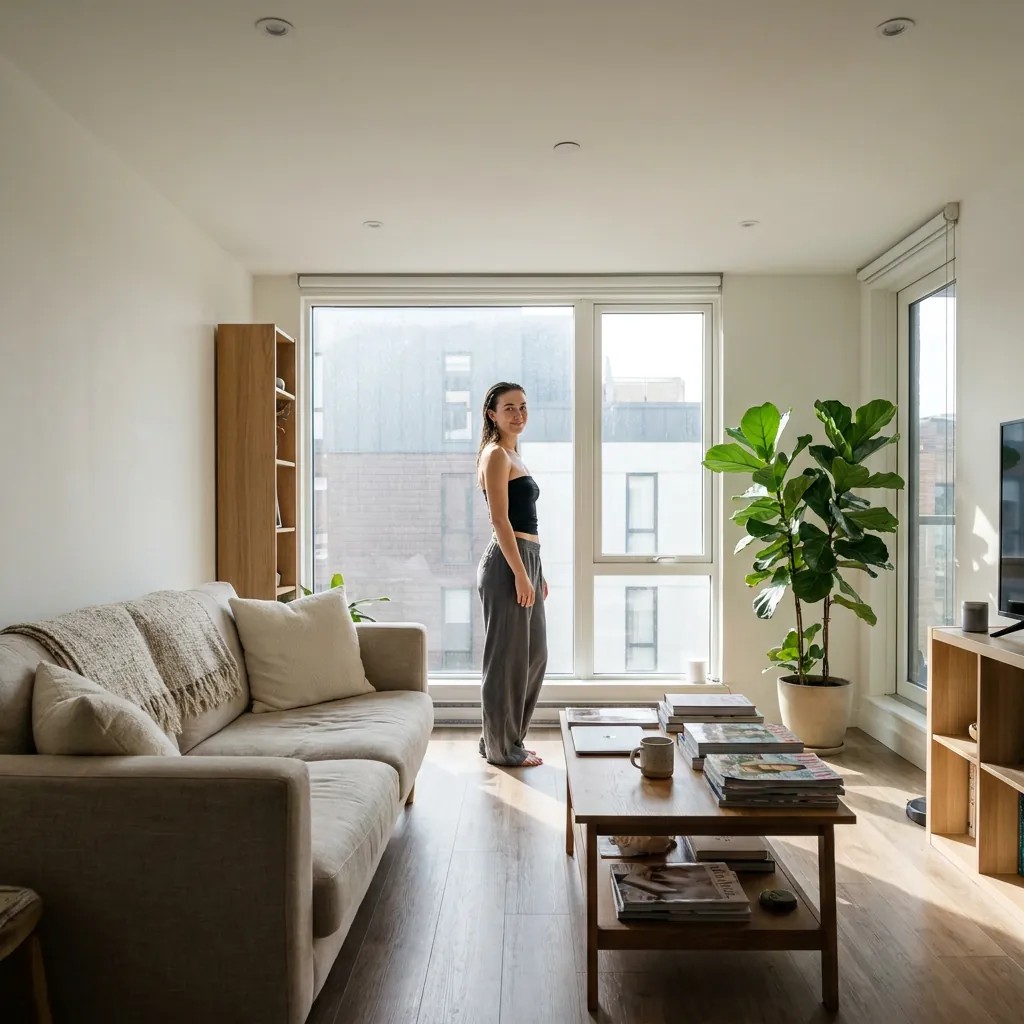
Wide shot (全景)
Show the subject and the wider setting.
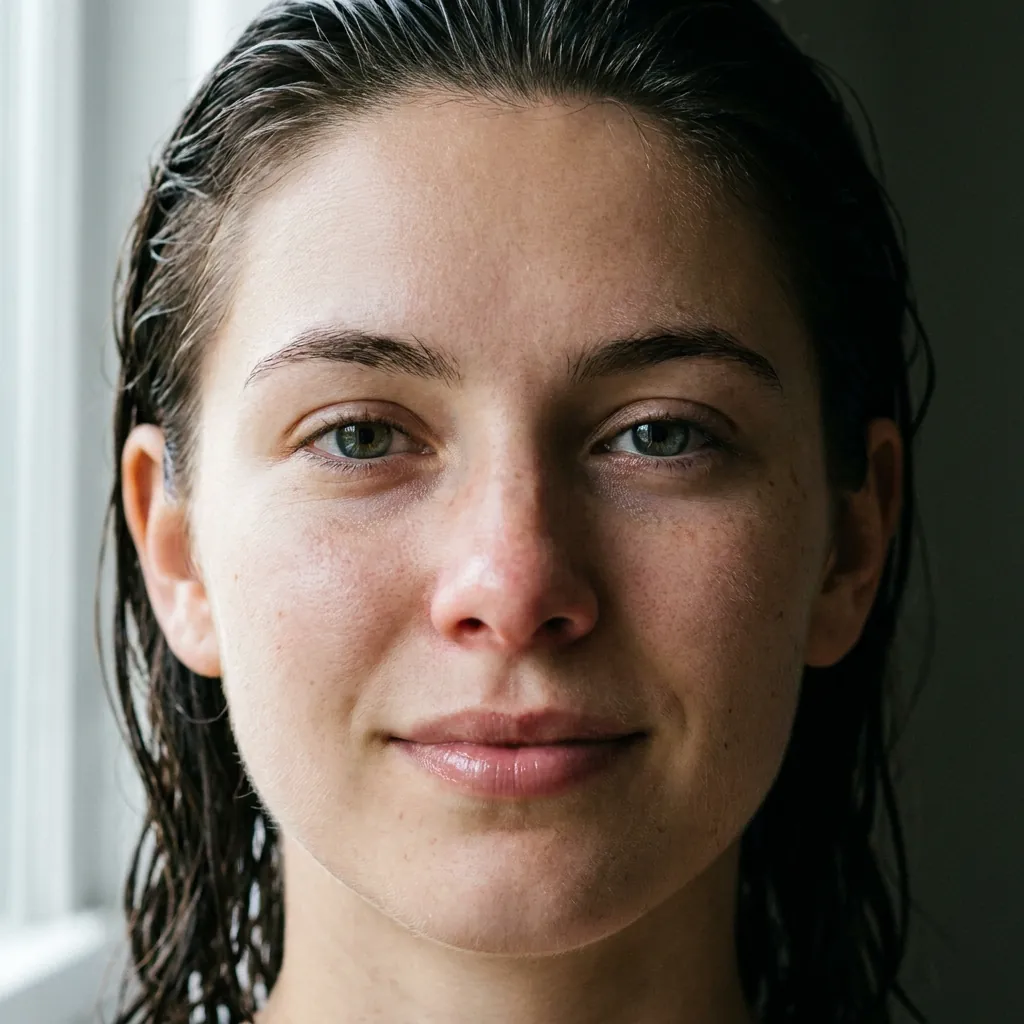
Extreme close-up
Move attention to the face and small details.
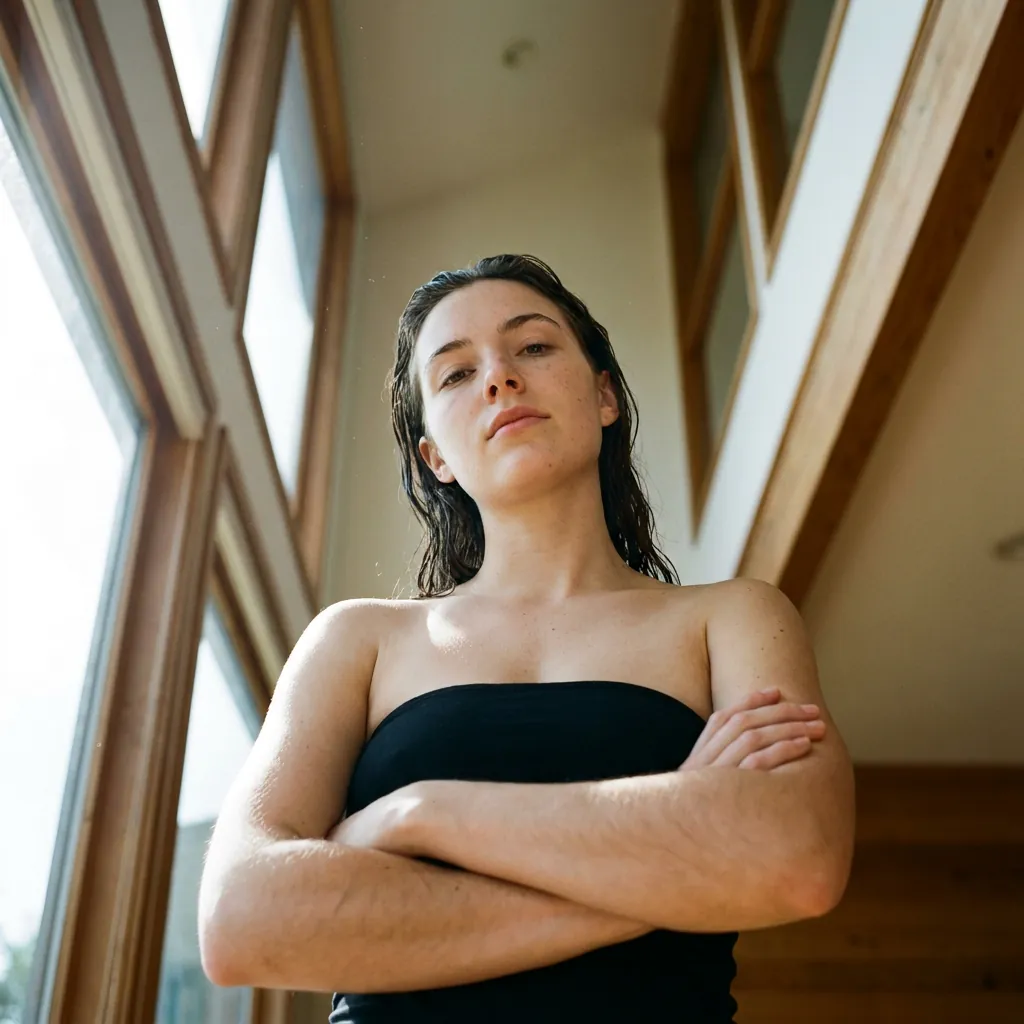
Low angle
The subject looks powerful.
Write what the face does
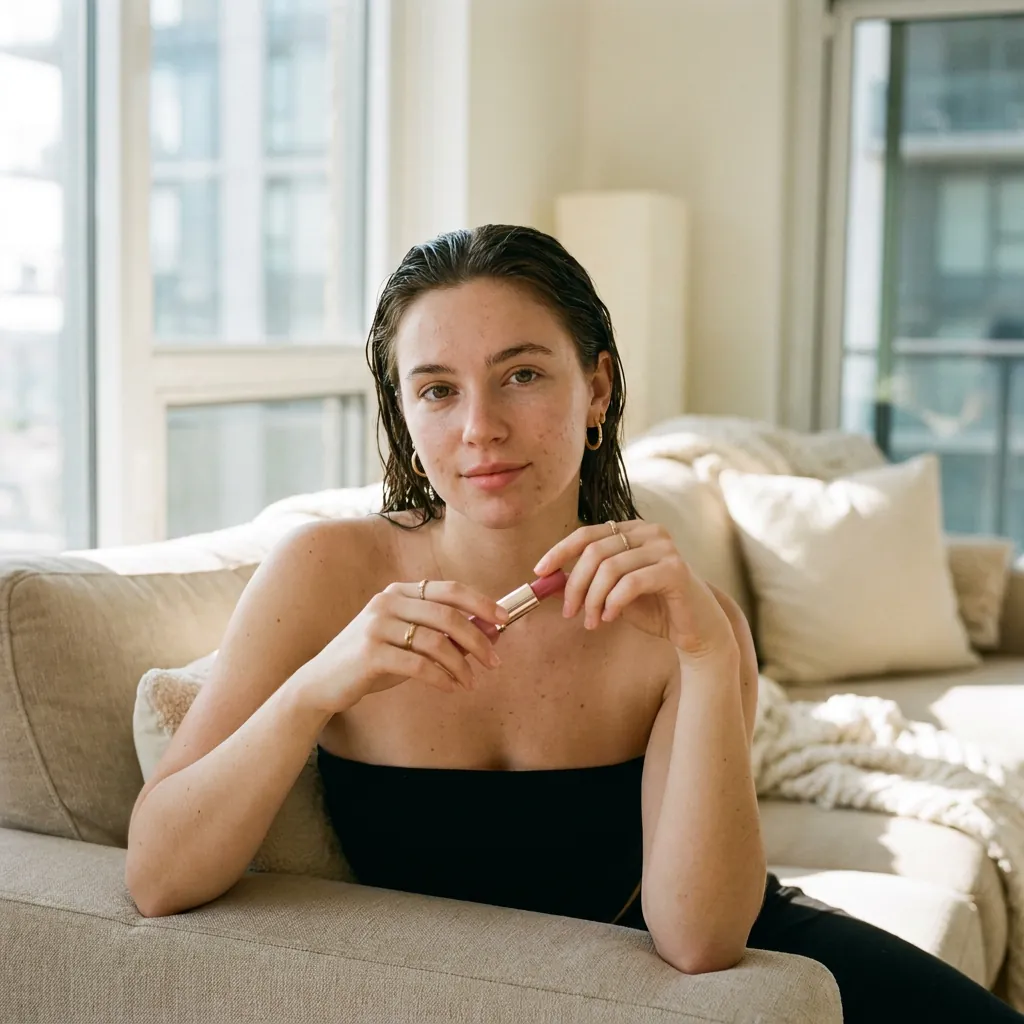
Put the expression into words. Compare “worried — eyebrows drawn together, tense mouth” with “bursting into a joyful laugh, eyes crinkled.” Specific, visible actions give the shot a clearer acting target.
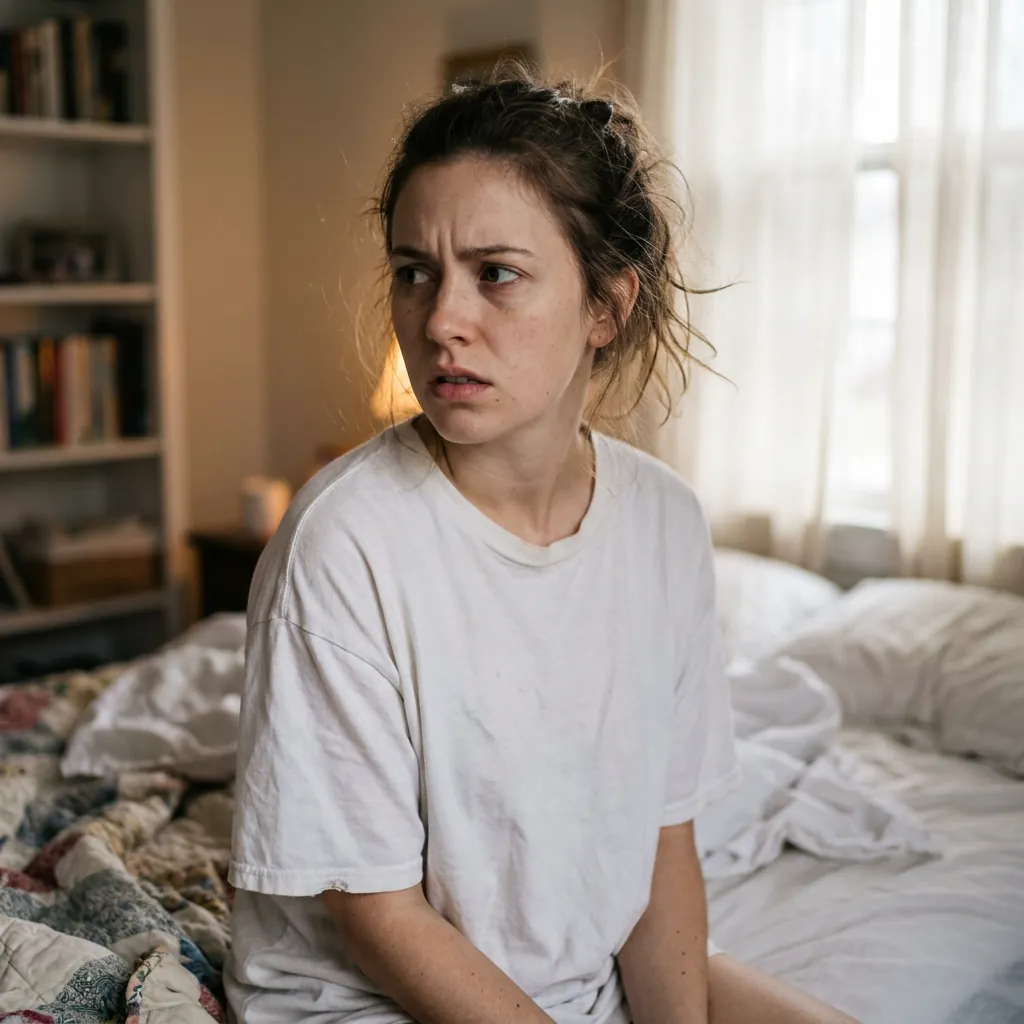
Worried
Eyebrows drawn together, tense mouth.
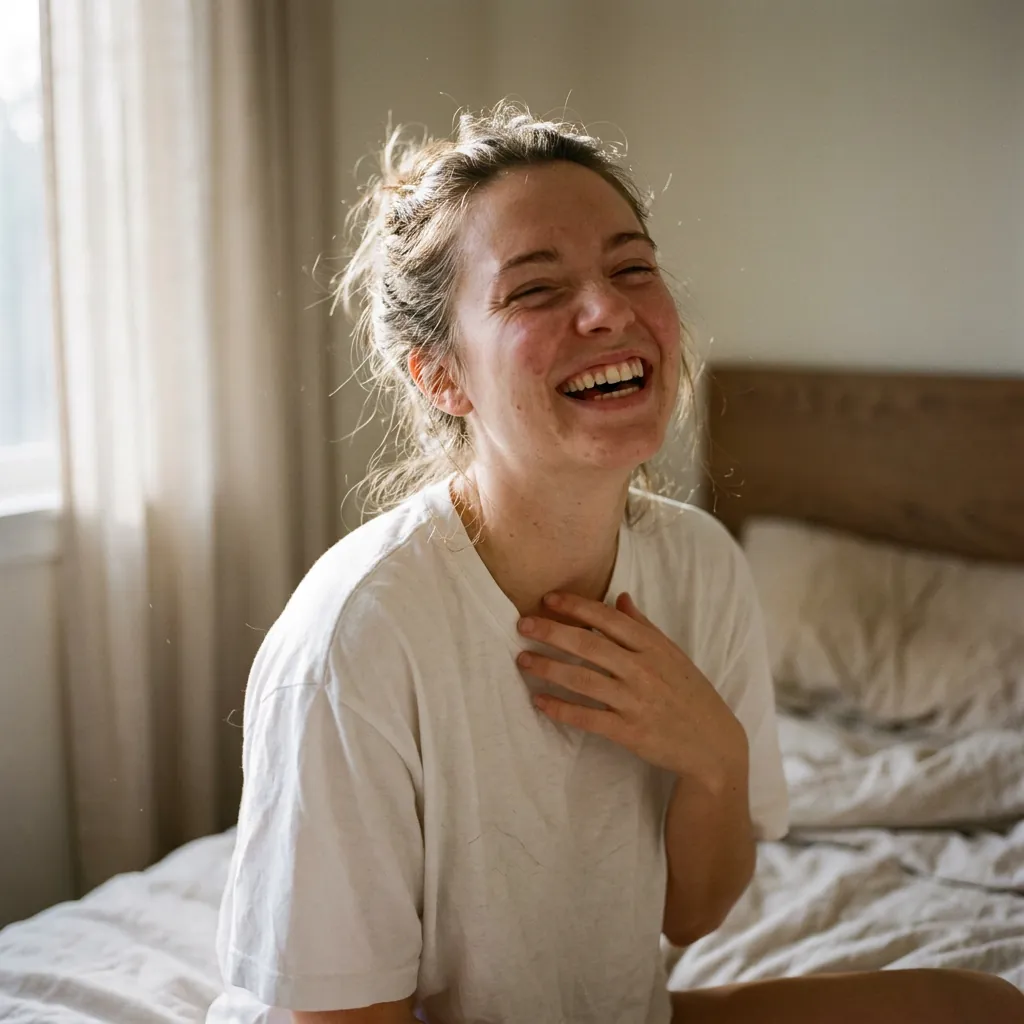
Joyful
A joyful laugh with eyes crinkled.
Type the feeling in your shot description — the Director writes it into the scene. Same person every time when you attach your reference photo.
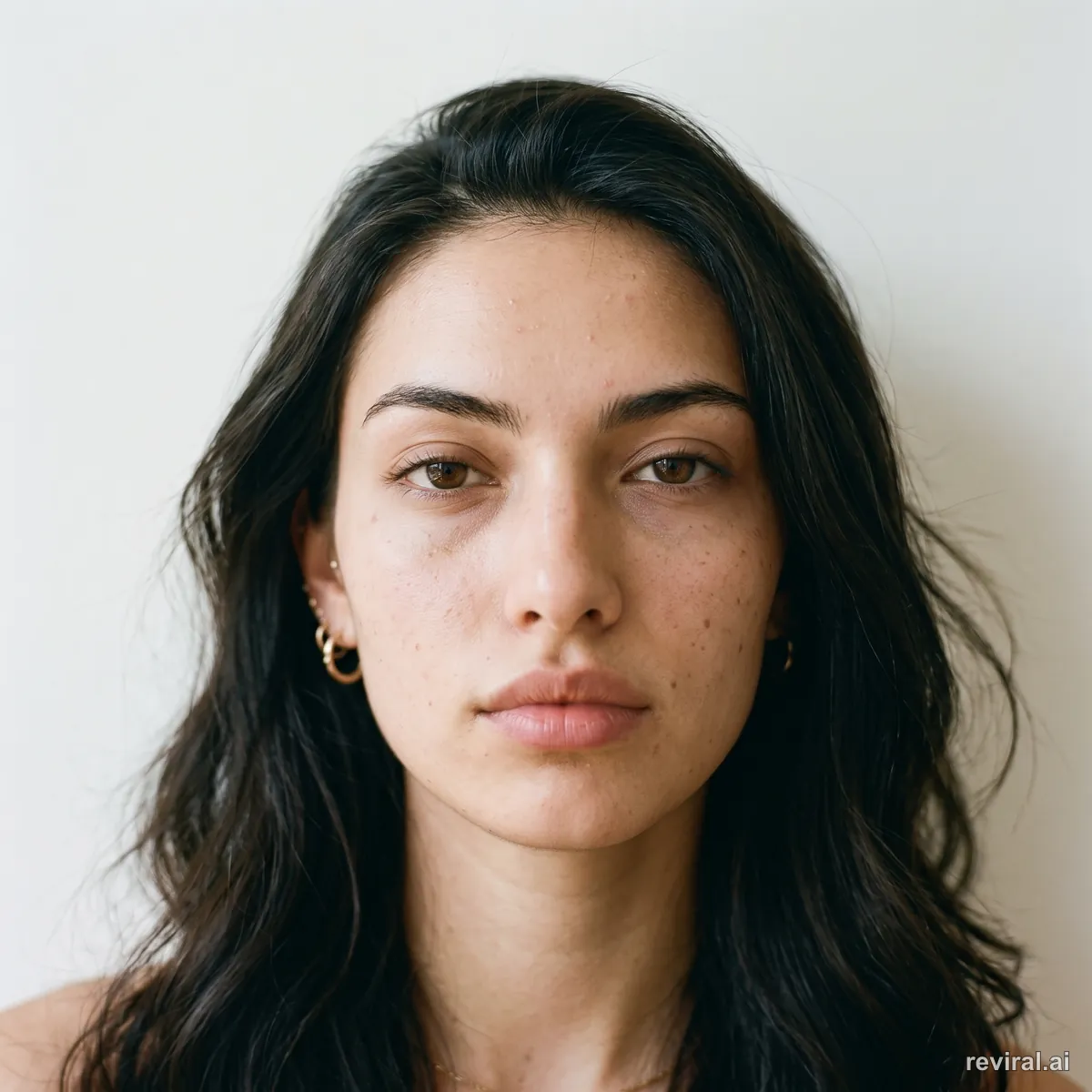
Neutral
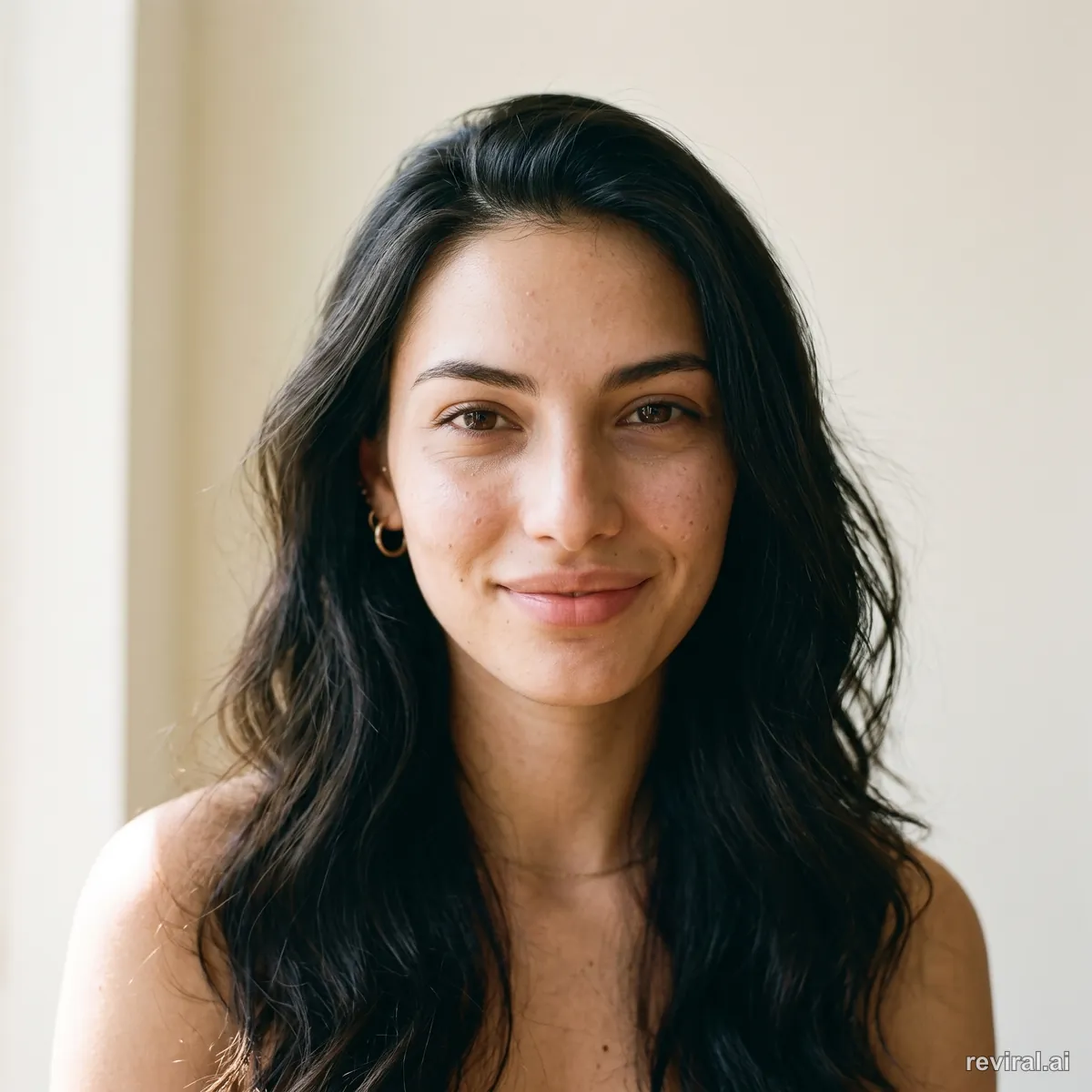
Soft smile
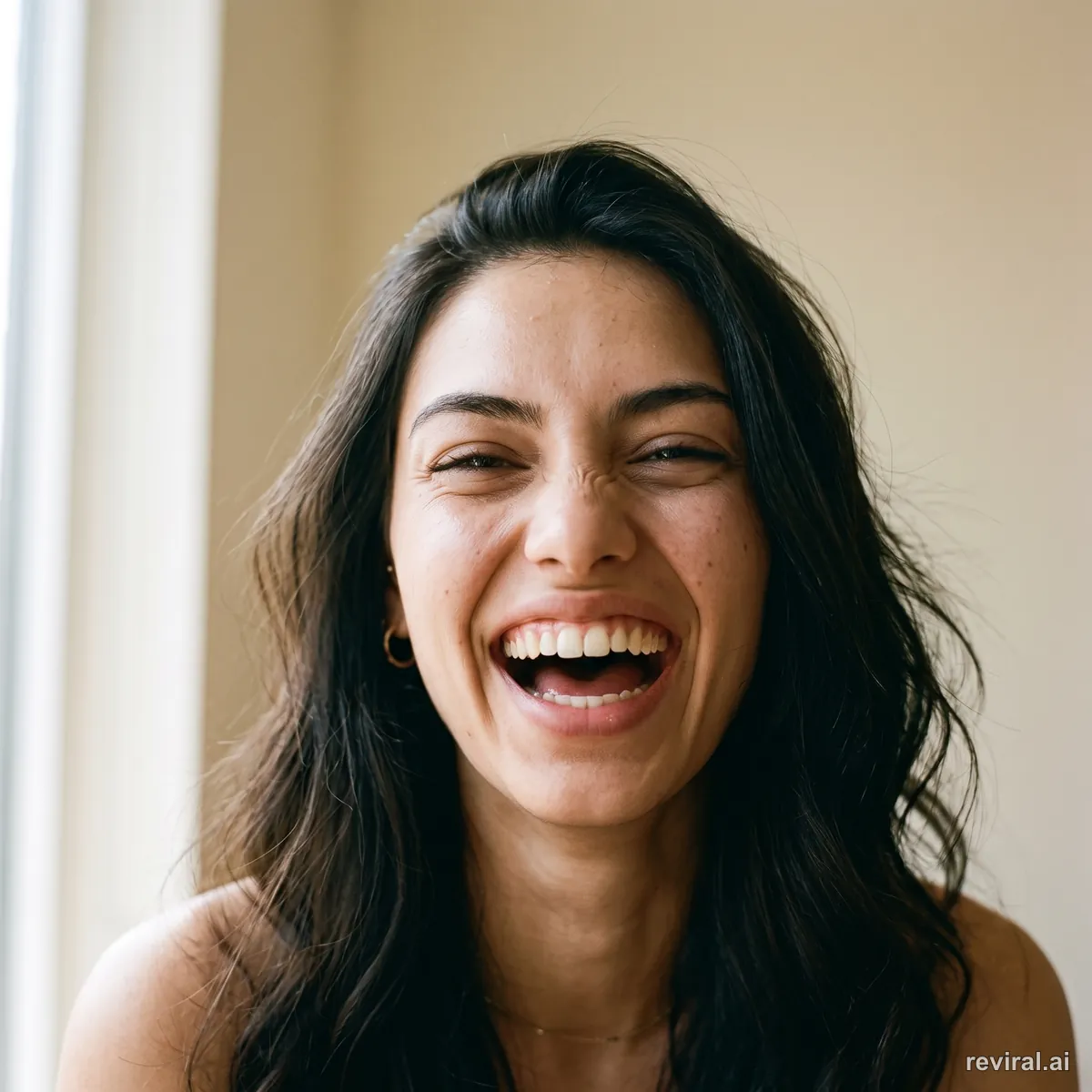
Laughing
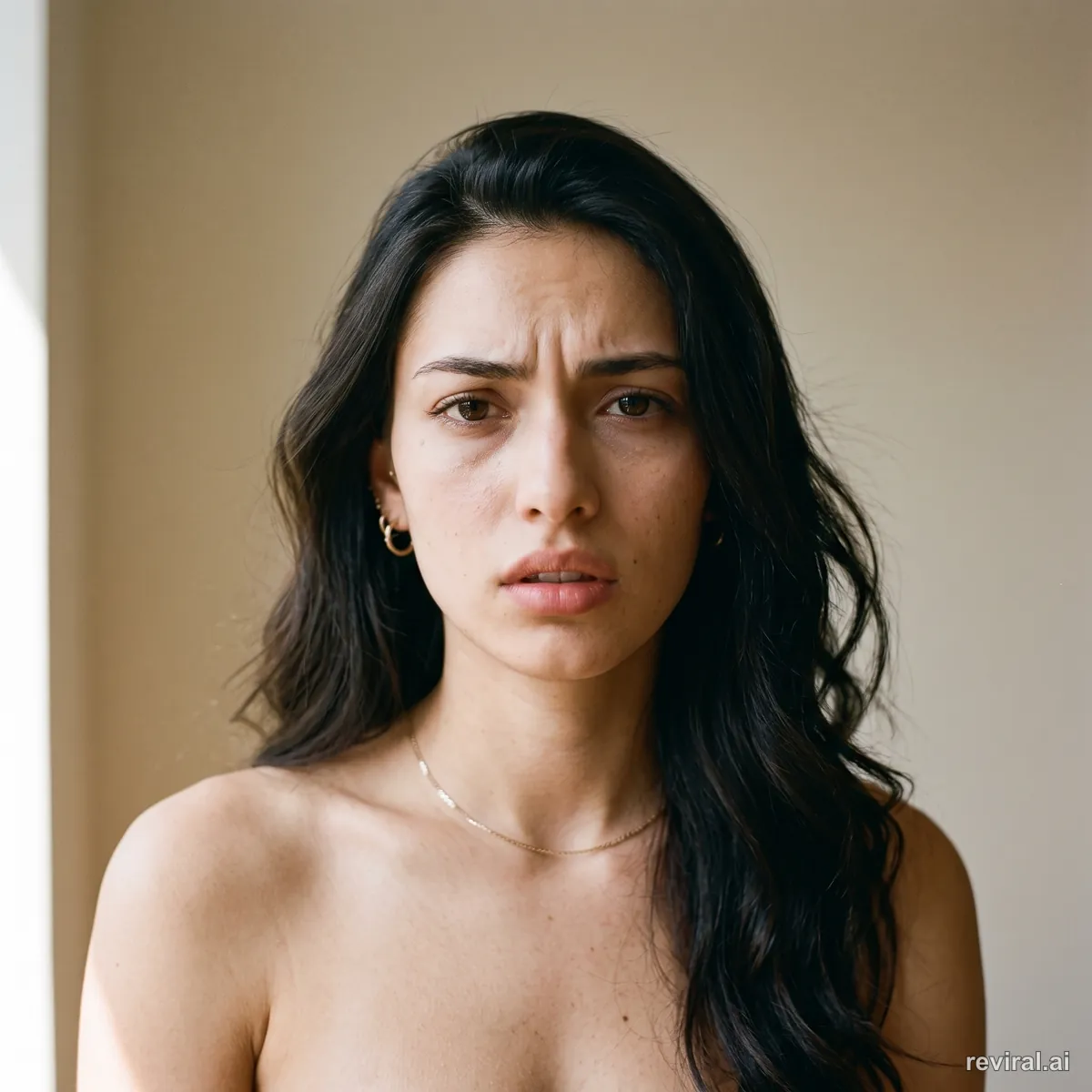
Worried
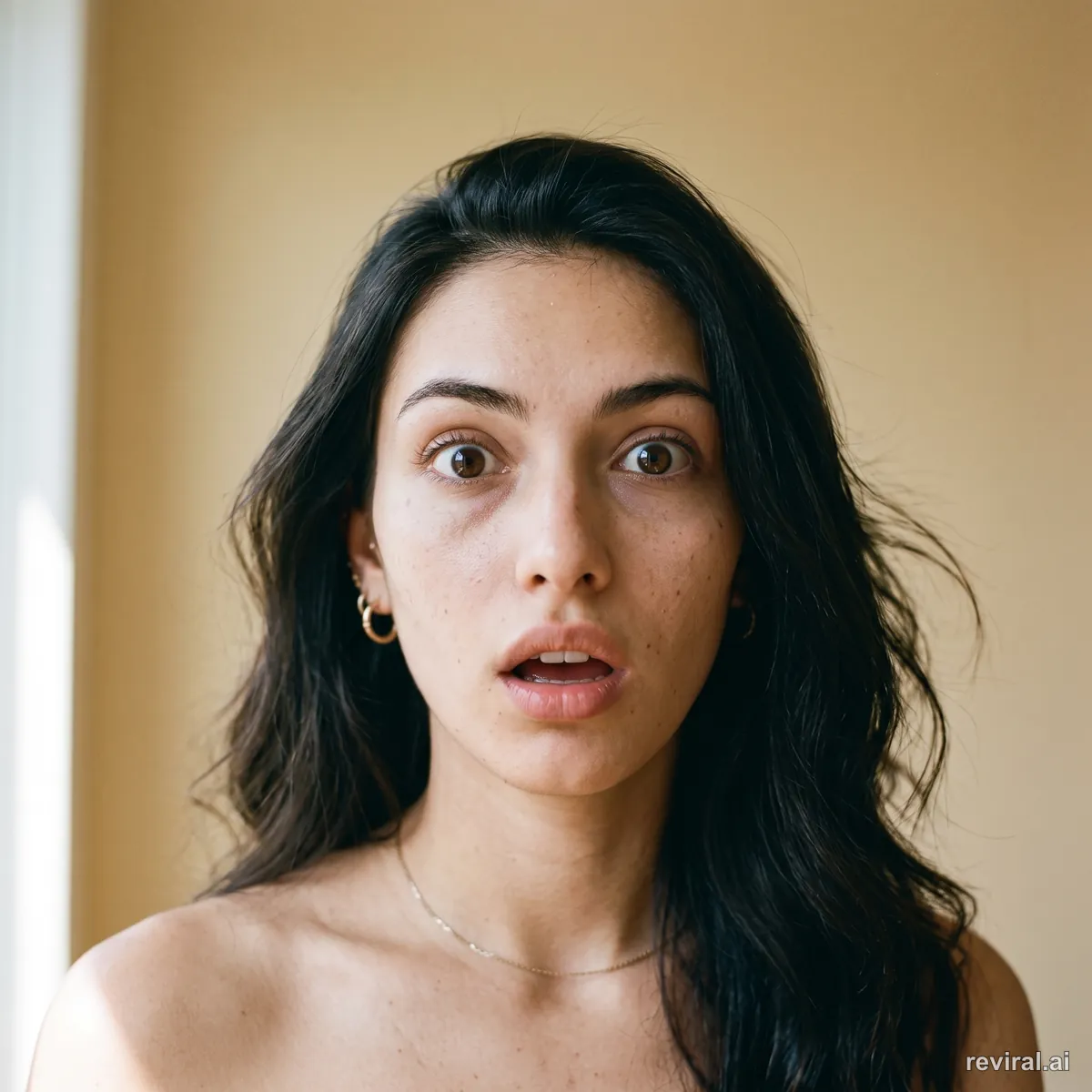
Surprised
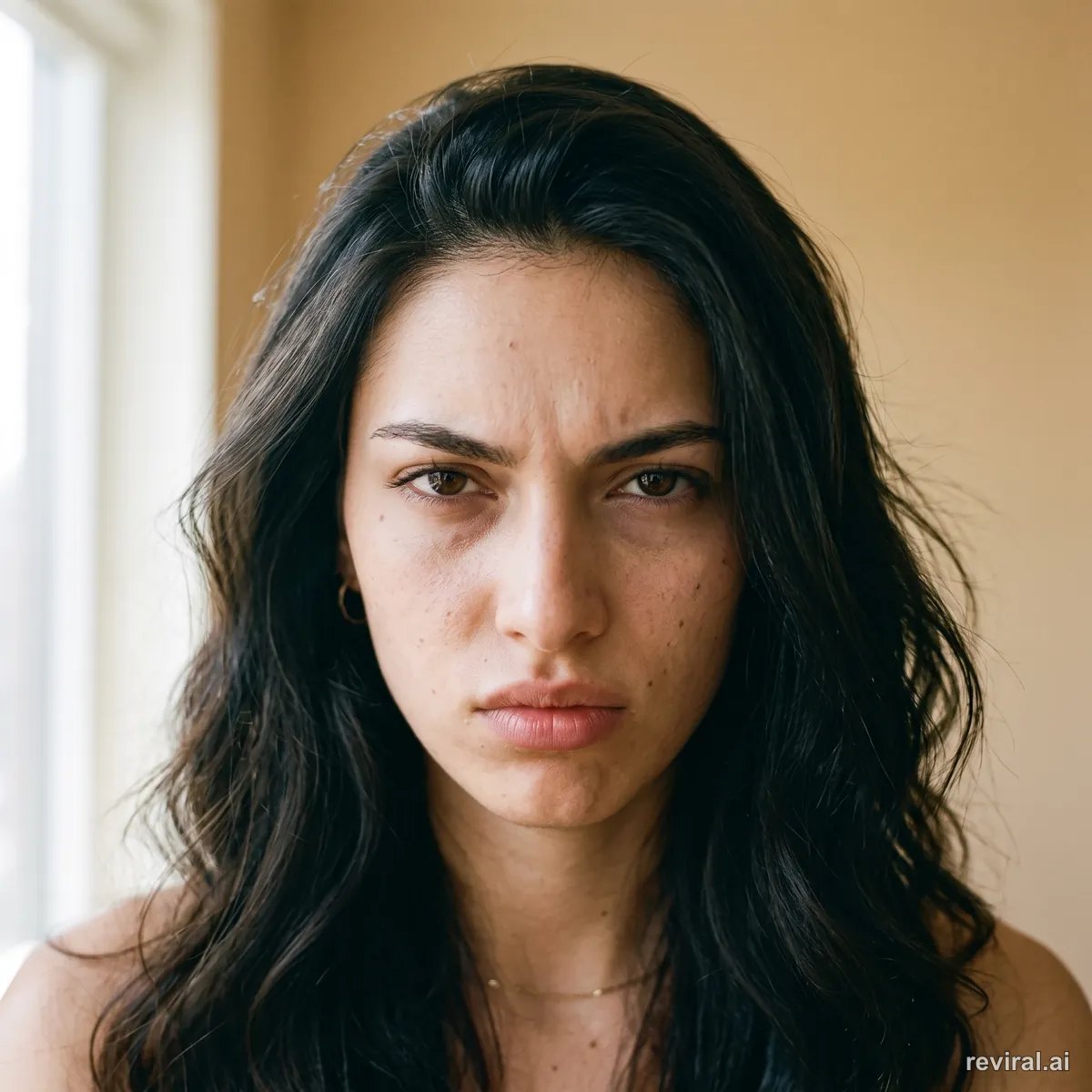
Angry
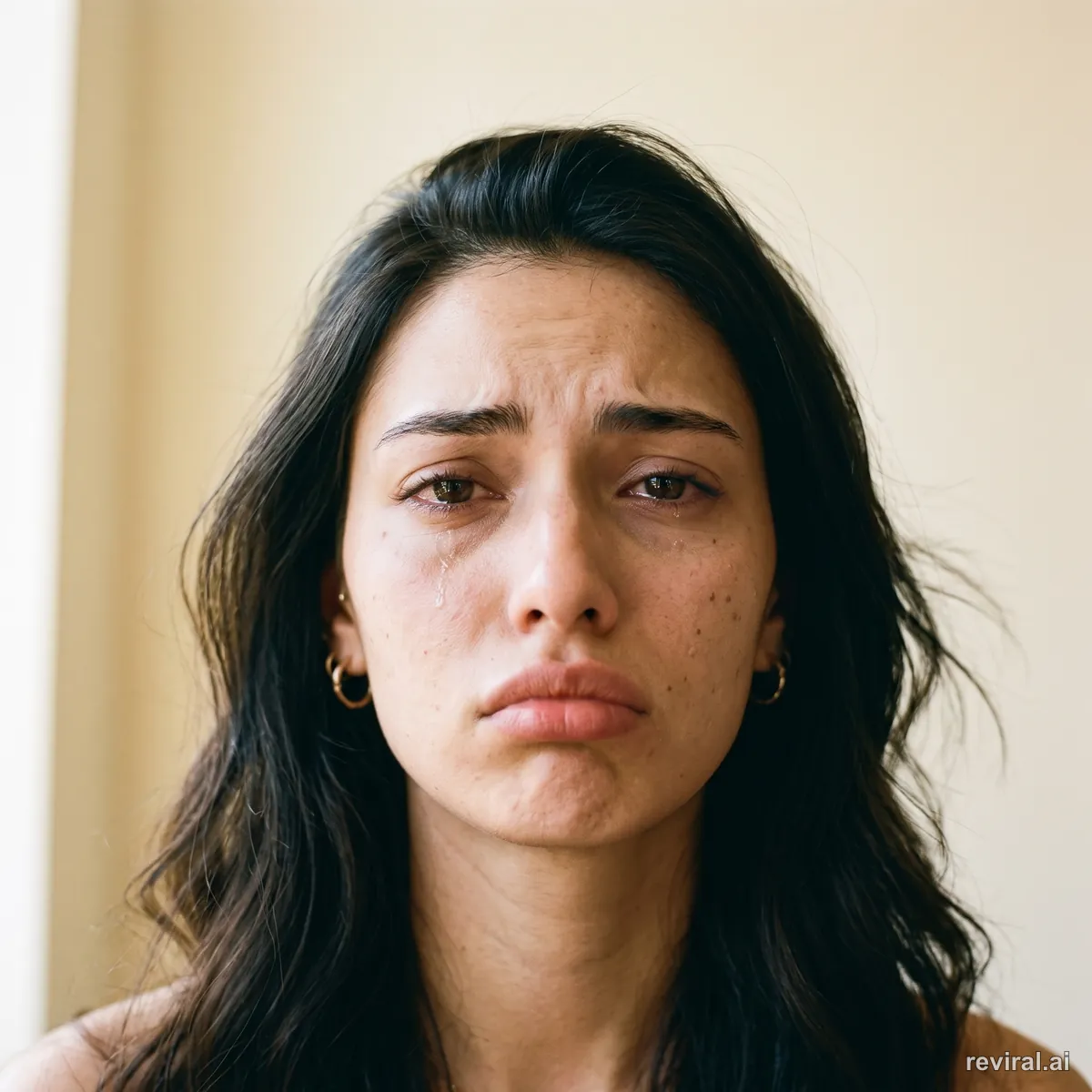
Sad
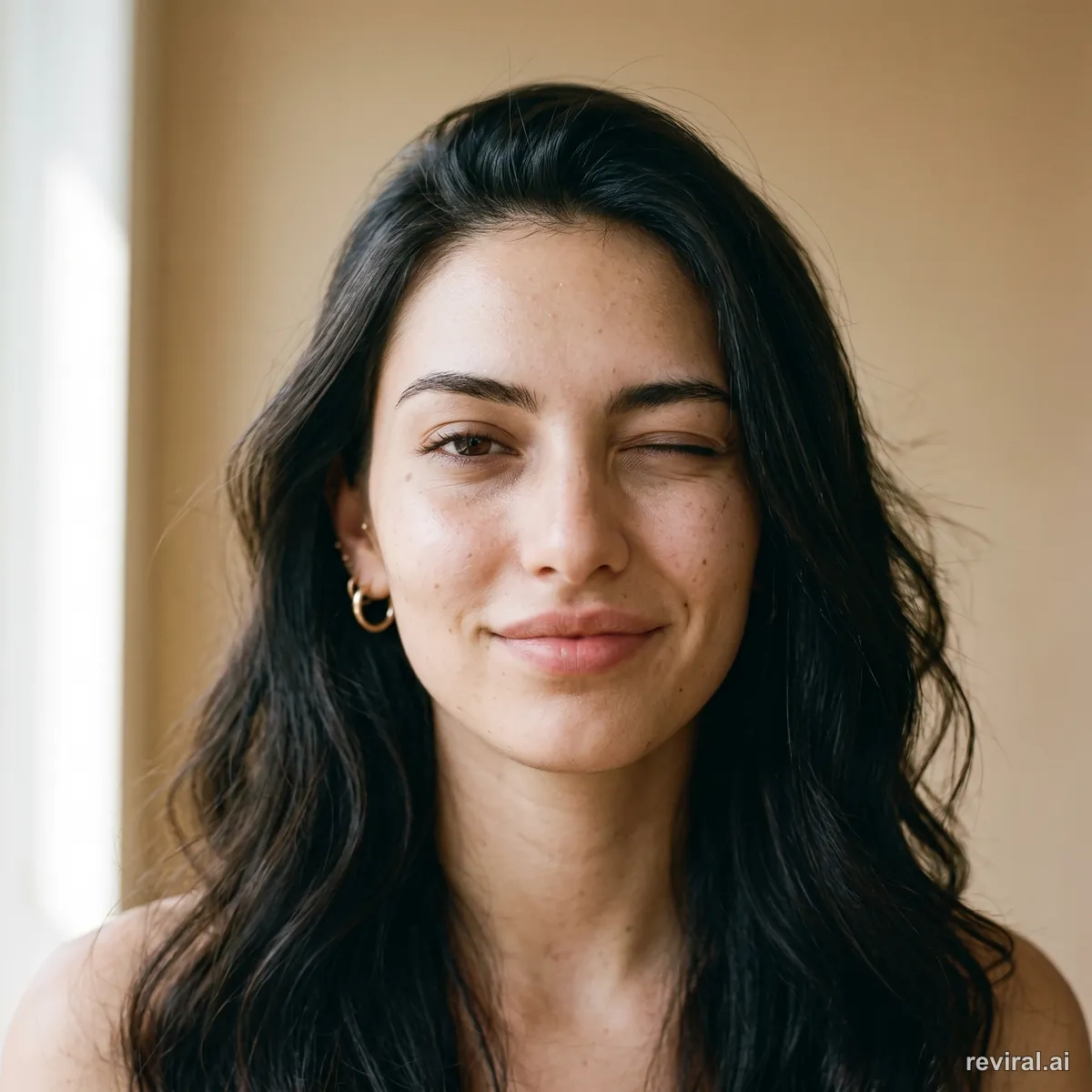
Wink
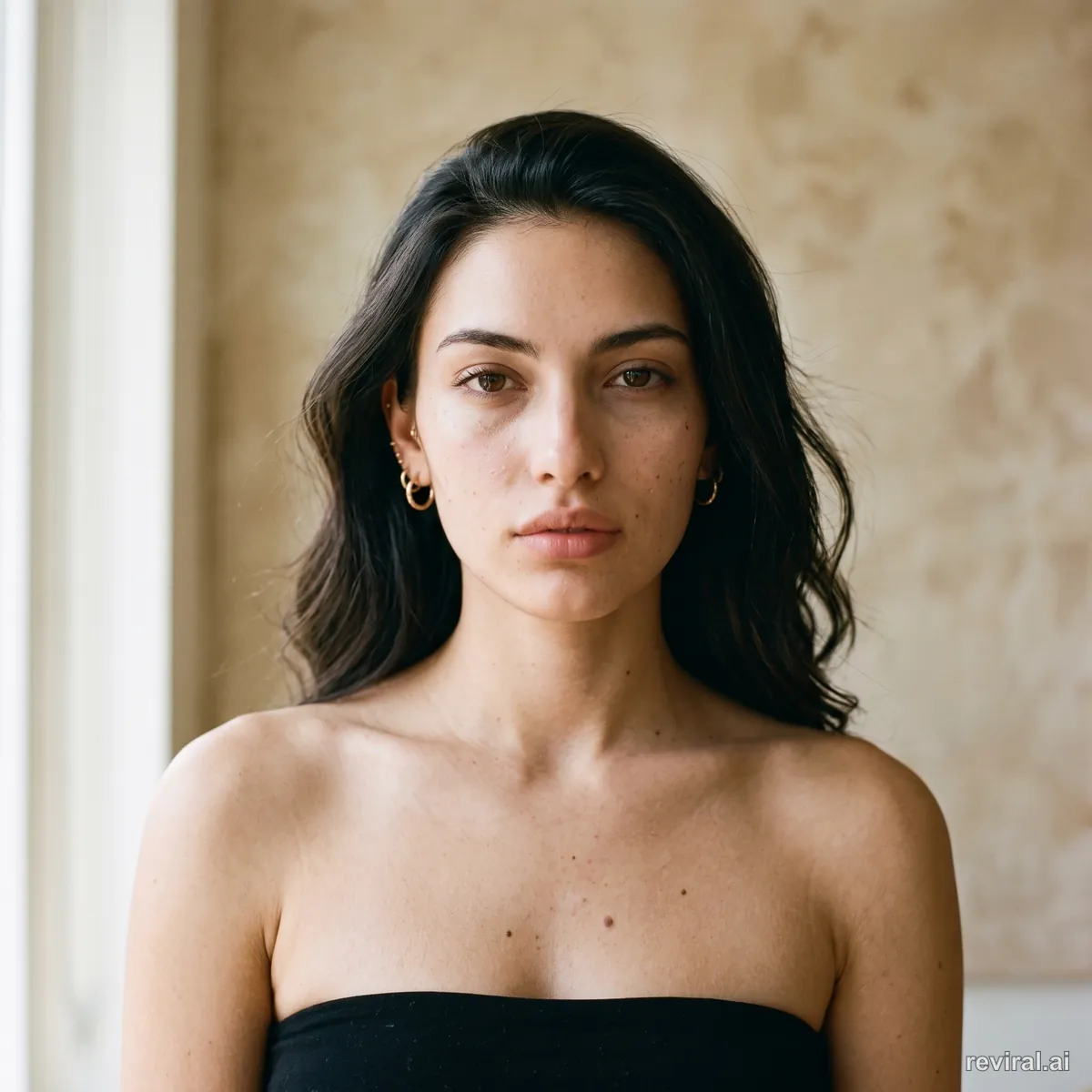
Calm confidence
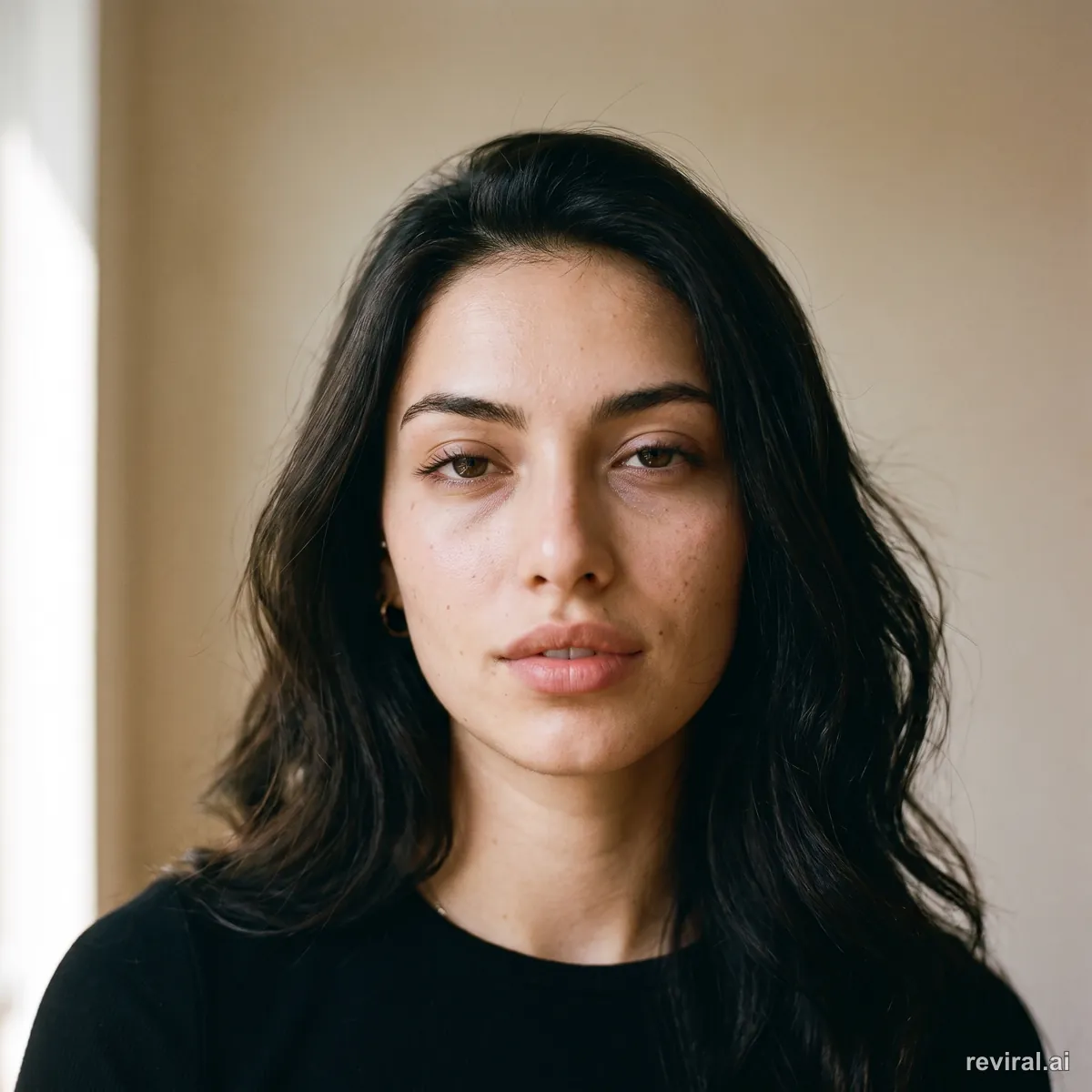
Allure
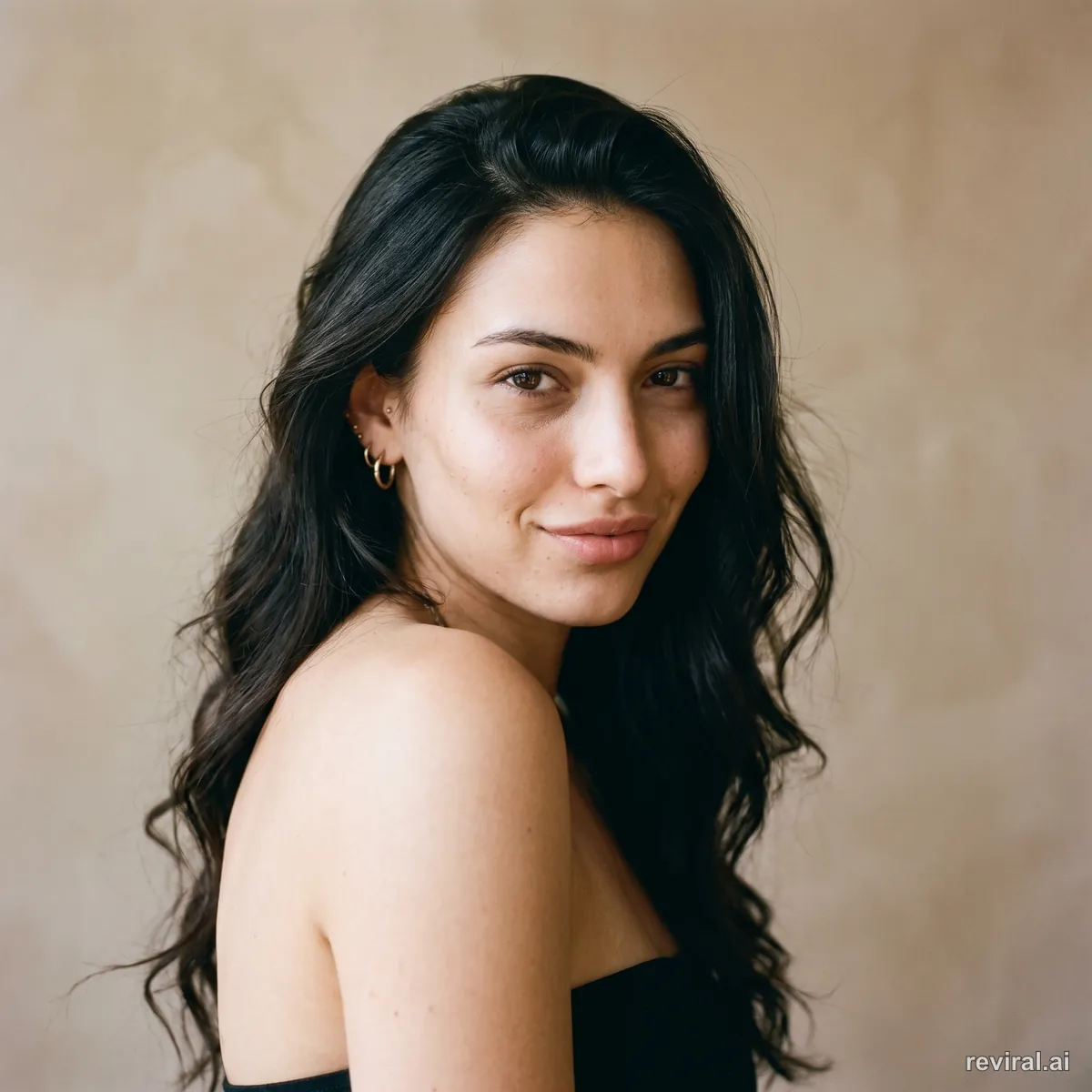
Flirty
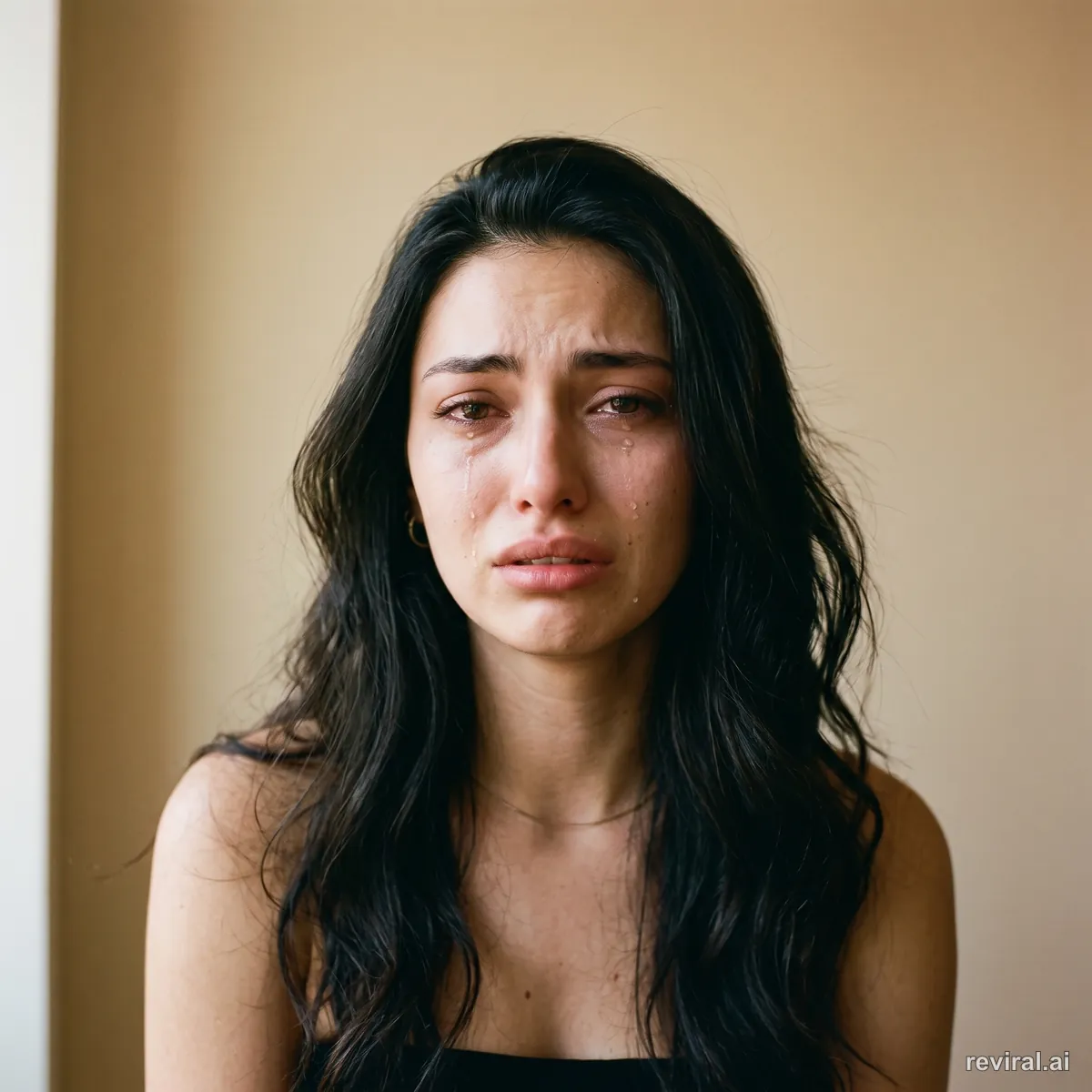
Crying
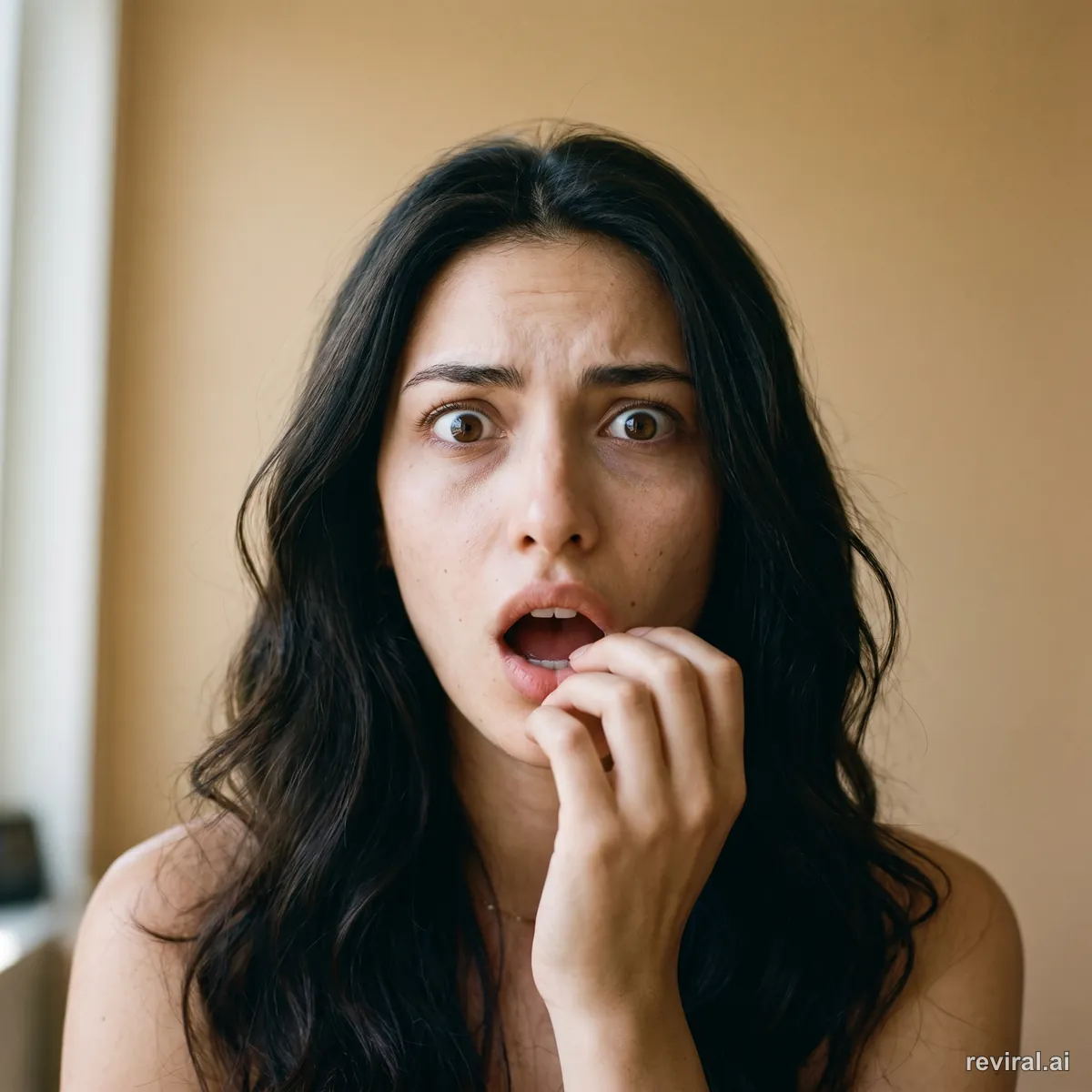
Shocked
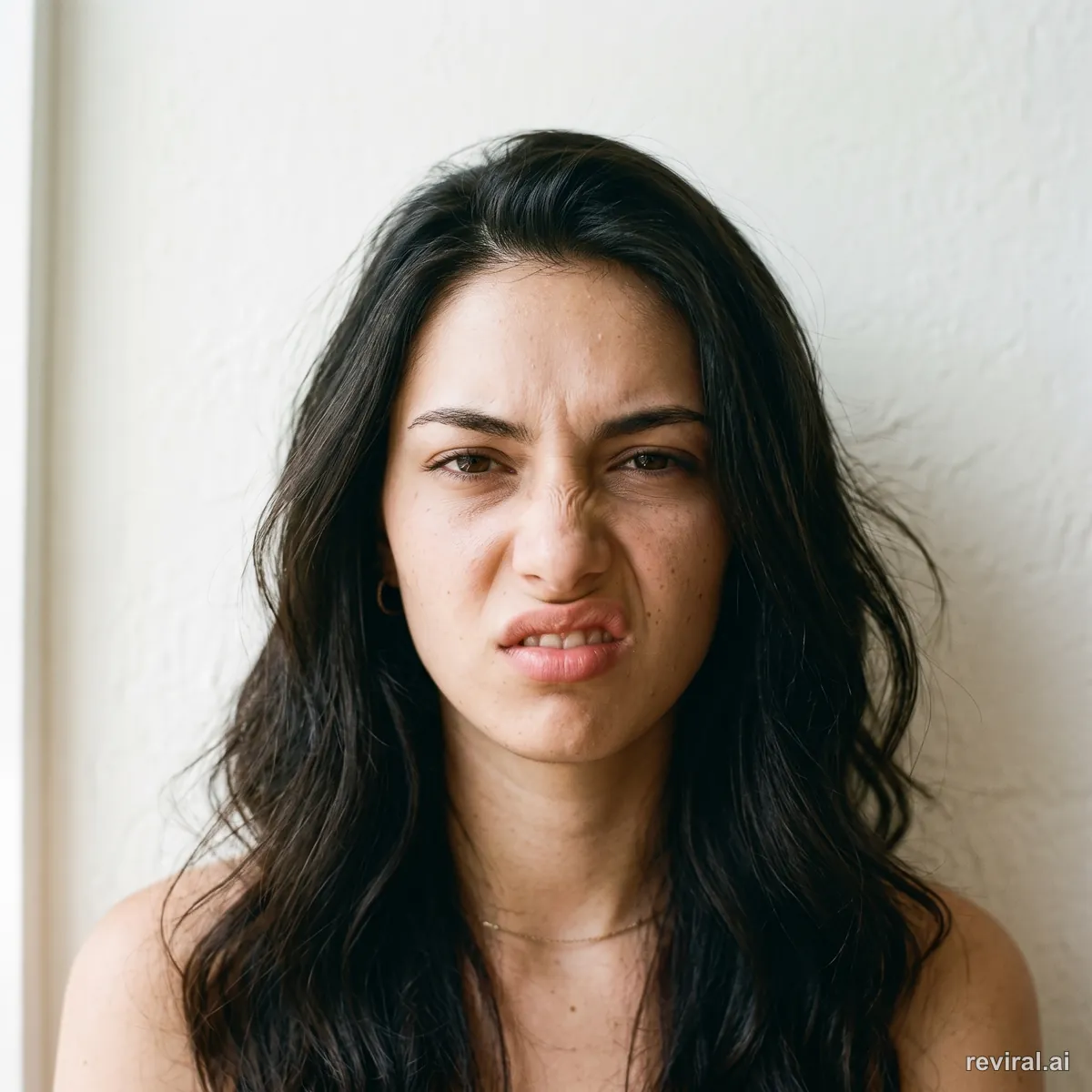
Disgust
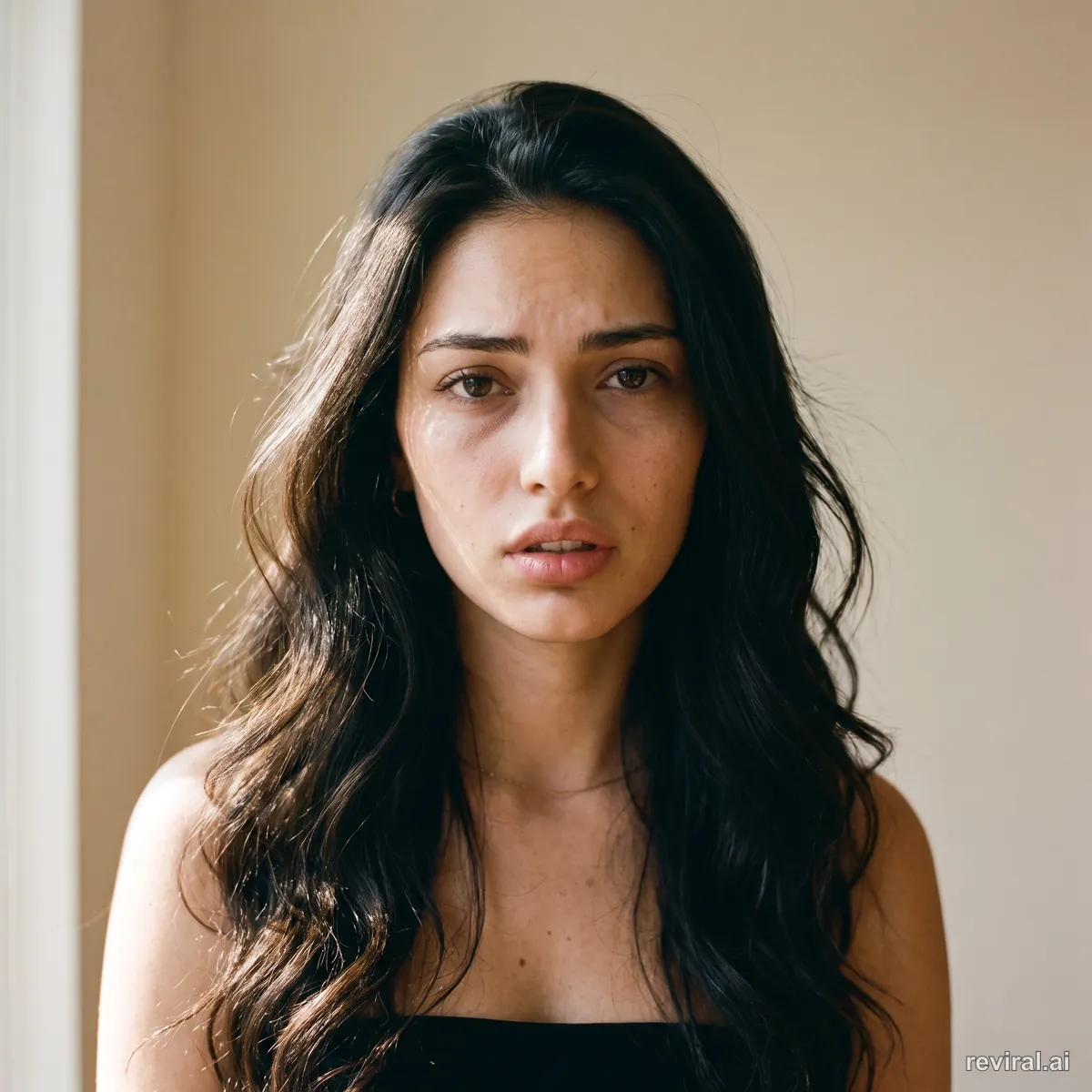
Pleading
Prompt for real texture
Add these craft words when you want a person to look like a real photograph: “Ultra-realistic real-world photography, shot on a 35mm lens, natural daylight, visible pores, natural skin texture, subtle film grain, no plastic skin, no CGI.” The example images on this page were made with Nano Banana Pro.
With the recipe
Natural skin detail stays visible.
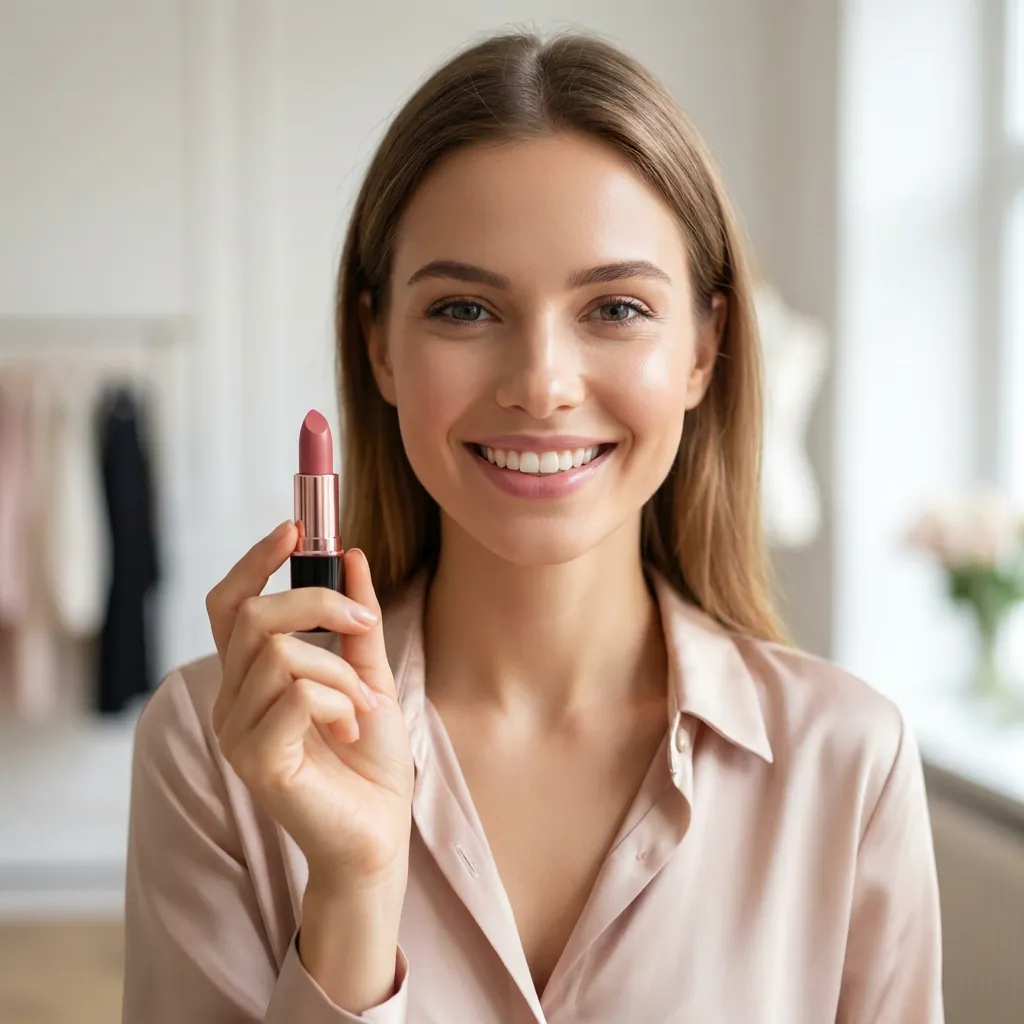
Without it
The skin has a smooth, plastic AI look.
Keep the room consistent
Attach a picture with “Add a picture”, or select a picture on the board and press “Use selected picture”.
That picture becomes @图片1. It is the authority for the scene layout, room geometry, set dressing, colour, and lighting. The Director points every shot prompt at it instead of inventing a competing room.
Pin references at the cursor
Type @ inside an image prompt box or video prompt box to open the reference picker at that spot. This does not work in the Director chat box. Use the prompt boxes on tiles.
In a video box, @图片N controls the look or appearance. @视频N controls the motion. The tile's own source image is @图片1, so extra images begin at @图片2. Videos begin at @视频1.
Reuse a character sheet
Ask for a character sheet. The Director can plan a six-view turnaround grid with front, angled, profile, and back views of the same person.
The sheet is not attached to later shots automatically. Select the finished sheet on the board and press “Use selected picture” before you plan the next scene.
To keep the same character across shots, reuse one clear character sheet or reference image and point each relevant shot back to it; on Canvas, select the finished sheet and use it as the reference before planning the next scene.
No special mode needed
Just describe a no-people shot. Name the product or detail, the framing, the light, and the action you want to see.
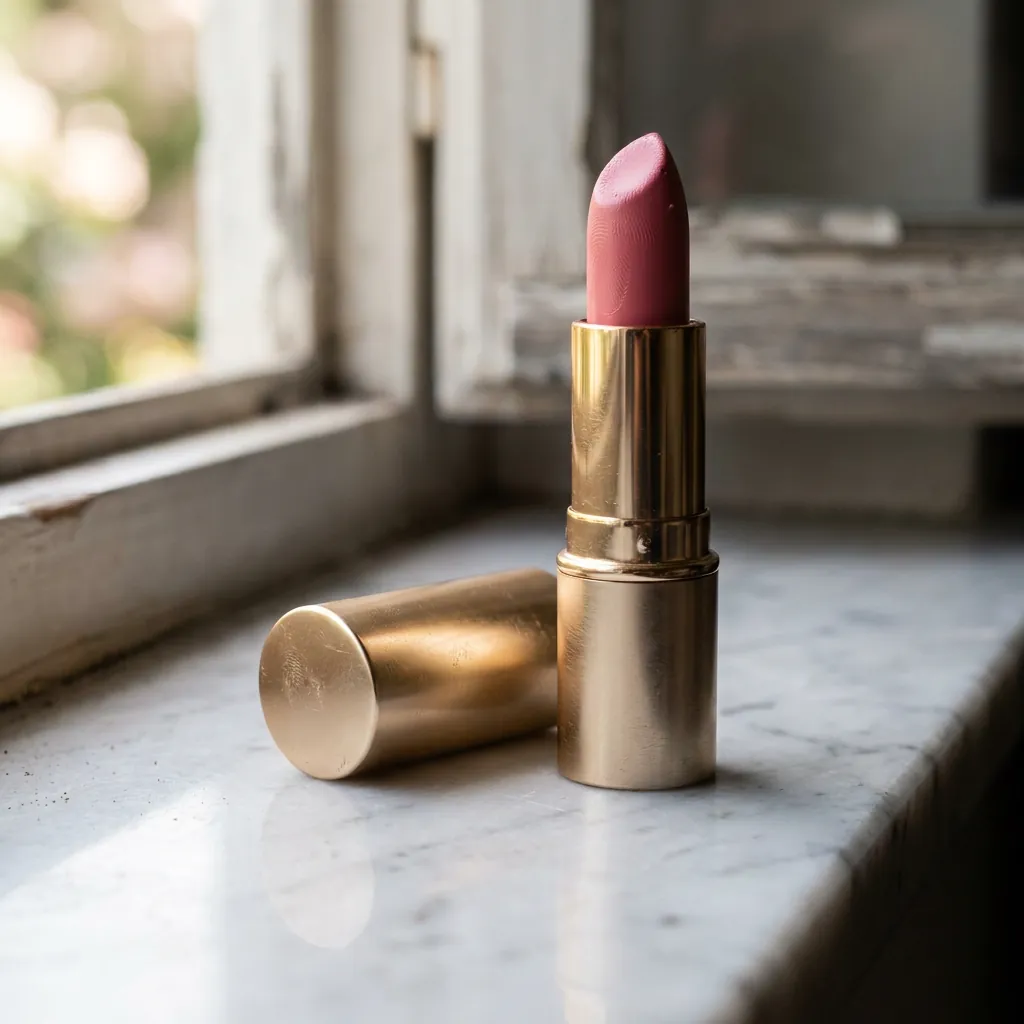
No-people B-roll
Describe the object, framing, light, and visible action.
Join finished clips
Pick 2 to 20 ready video clips. They must all use the same aspect ratio and each one must be ready to stitch.
Stitching costs 0 credits.
Direct answers
Chatting with the Director costs no credits; planning, follow-up questions, and prompt writing are free. The Director does not render video by itself; it creates text plans and editable shot directions.
Vibe directing means shaping an AI video through natural conversation about the feeling, story beats, camera choices, and changes you want. This guide's chat-to-direct flow is exactly that: the Director translates the conversation into a concrete shot plan before you render.
You can start with text only; a reference photo is optional. Add one when you need the model to preserve a particular person, room, product, wardrobe, composition, or lighting setup.
You can describe as many camera angles or shot types as the plan needs, up to Canvas's 20-shot plan ceiling. Use familiar camera language such as wide, close-up, low angle, overhead, tracking, pan, or rack focus, and specify the framing and movement per shot.
Write facial expressions as visible muscle and movement cues instead of a mood label alone. For example, describe eyebrows drawing together, a tense mouth releasing, or eyes crinkling as a smile grows so the shot has an observable acting target.
You can stitch from 2 to 20 finished clips into one video. The clips must share the same aspect ratio and each clip must be ready before stitching.
Yes, the directing method works for models other than Seedance because shot timing, visible action, camera language, acting notes, and reference consistency are model-independent craft. Adapt the final prompt length and supported controls to the video model you choose.
The Director chat is a conversational planner that asks questions and develops a shot plan with you. The prompt generator at /video-prompt-generator is a structured form that automatically produces one four-section, paste-ready prompt from your brief and craft choices.
Plan before you generate
Open Canvas, tell the Director what you want to make, and review the plan before you choose a priced Generate button.
Open CanvasLast updated: September 26, 2026